View
-
Select
-
Scene
-
Online Map
-
Earth View
-
Measurement
-
Windows
5.1 Select
Click View menu, click [Select] button, to tap or box the data elements in the view, to perform processing on the selected data.
Click View menu, click [Move] button, to drag the display area in the view.
Click View menu, click [Rect Select] button, to construct a polygon selection range in the view with the left mouse button and complete the selection range with the right mouse button, to perform processing on the selected data.
Select, Move and Rect Select functions are also available in the view by clicking the right mouse button.
5.2 Scene
Click View menu, click [Zoom All] button, adjust the display area in the view to show all data elements.
Click View menu, click [Zoom Center] button, adjust the display area in the view to center the left mouse button click position.
Click View menu, click [Show Grids] button, to show or hide the coordinate grid in the view.
Click View menu, click [Zoom Out] button, and then click the left mouse button to zoom out the view centered on the click position.
Click View menu, click [Zoom In] button, and then click the left mouse button to zoom in the view centered on the click position.
Zoom All, Show Grids, Zoom Out and Zoom In functions are also available in the view by clicking the right mouse button.
5.3 Online Map
Click View menu, click [Online Map] button, to display an online map as the background.
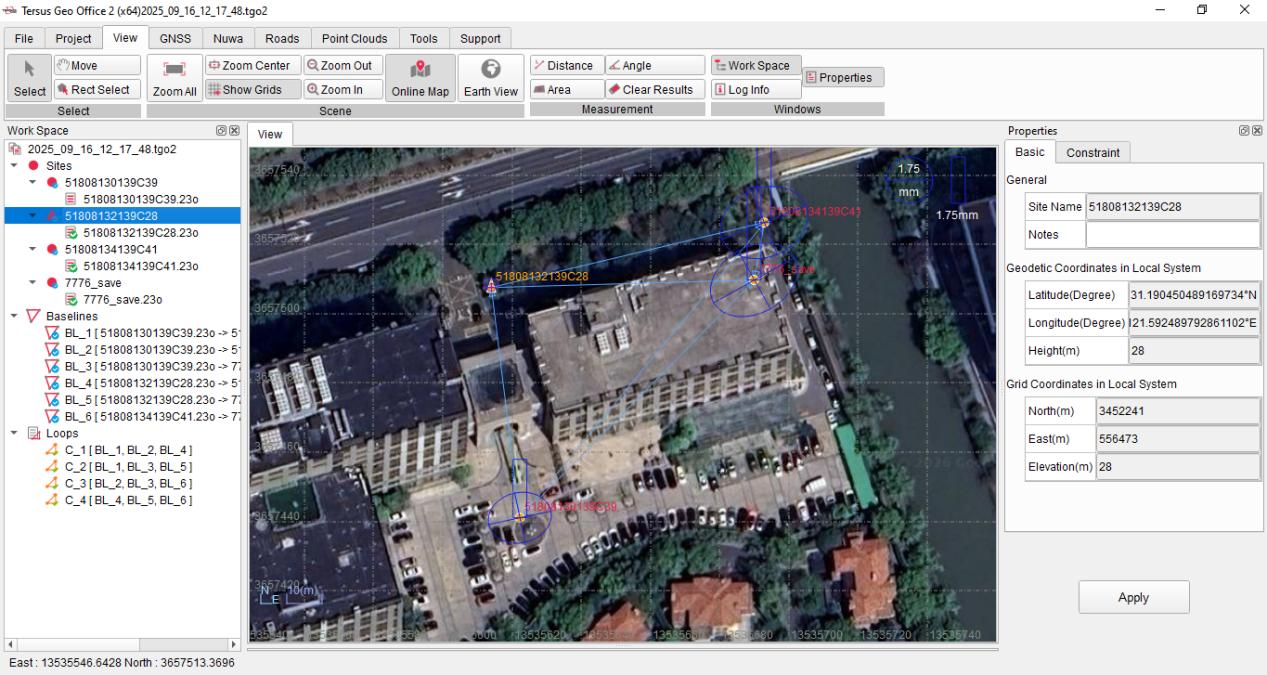
Figure 5.1 Online Map
5.4 Earth View
Click View menu, click [Earth View] button, open the earth view interface. Use the mouse wheel to zoom the display, use the left mouse button to drag the display and the right mouse button to rotate the display, to adjust the 3D display angle of Earth View.
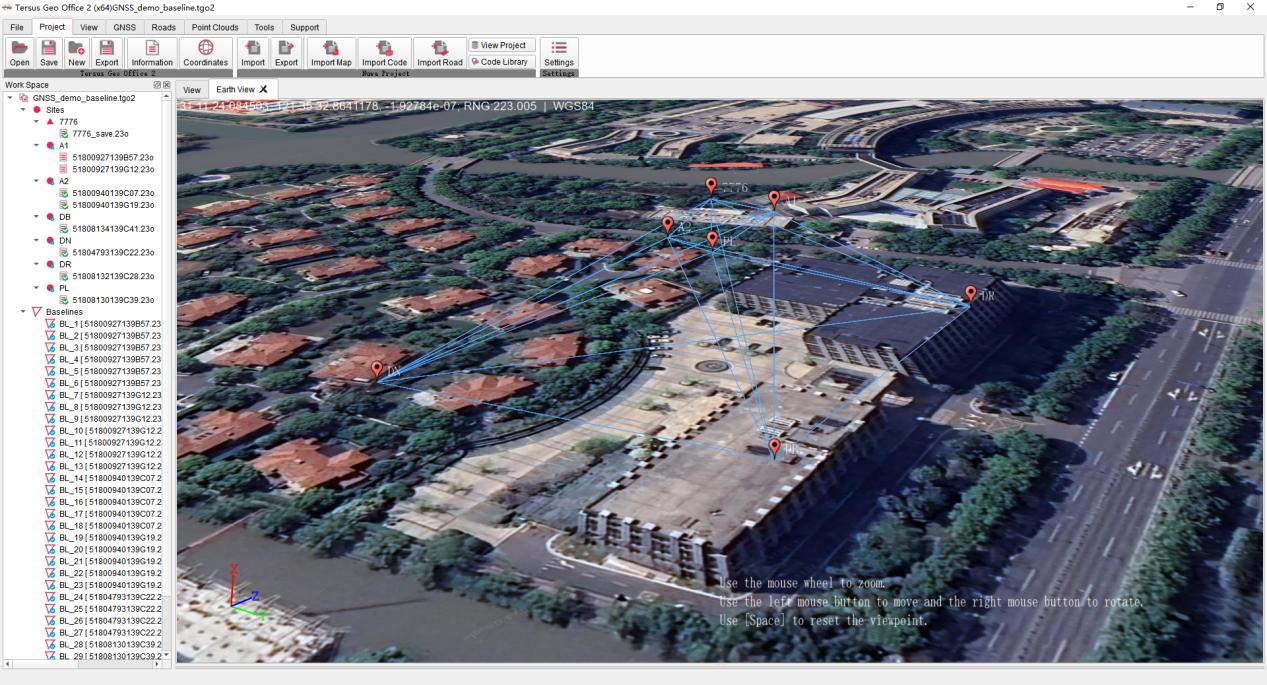
Figure 5.2 Earth View
5.5 Measurement
Click View menu, click [Distance] button, select two or more points with the left mouse button in the view to measure the distance value, and exit measurement with the right mouse button.
Click View menu, click [Area] button, select three or more points with the left mouse button in the view to measure the area value, and exit measurement with the right mouse button.
Click View menu, click [Angle] button, select three or more points with the left mouse button in the view to measure the angle value, and exit measurement with the right mouse button.
Click View menu, click [Clear Results] button to clear all measurement results displayed on the view.
5.6 Windows
Click View menu, click [Work Space] button to show or hide the Work Space window.
The Work Space window displays all the data and their relationships in the project, and the display of each data can be configured.
Click View menu, click [Log Info] button to show or hide the Log Info window.
The Log Info window displays errors, warnings and information prompts in the operation.
Click View menu, click [Properties] button to display or hide the Properties window.
The Properties window displays the attribute parameters of selected data, and the attribute parameters can be configured in properties window.