Tools
-
Coordinate Systems
-
Antennas
10.1 Coordinate Systems
Click Tools menu, click [Coordinate Systems] button, to open the coordinate systems tool.
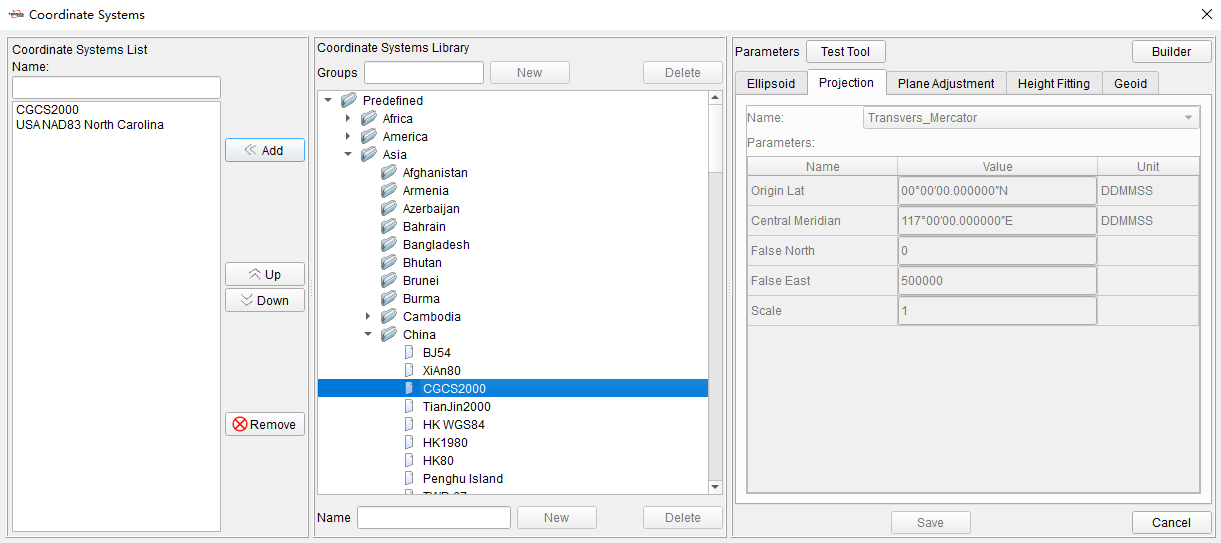
Figure 10.1 Coordinate Systems Tool
The tool is divided into three parts, Coordinate System List on the left, Coordinate System Library in the center and Parameters on the right.
The coordinate systems in Coordinate System List can be displayed and selected directly when creating new project or setting coordinate systems of projects. Click [Add] to add coordinate systems from Coordinate Systems Library to the list. Click [Up] or [Down] to adjust the sorting in the list. Click [Remove] to remove items in the list. Click items in the list, the detailed information will be displayed in Parameters part on the right side.

Figure 10.2 Coordinate Systems List
In Coordinate Systems Library, there are predefined coordinate systems and customized coordinate systems. The predefined coordinate systems are categorized according to continents and regions. Click on predefined coordinate systems, the parameters will be displayed on the right side but cannot be edited.
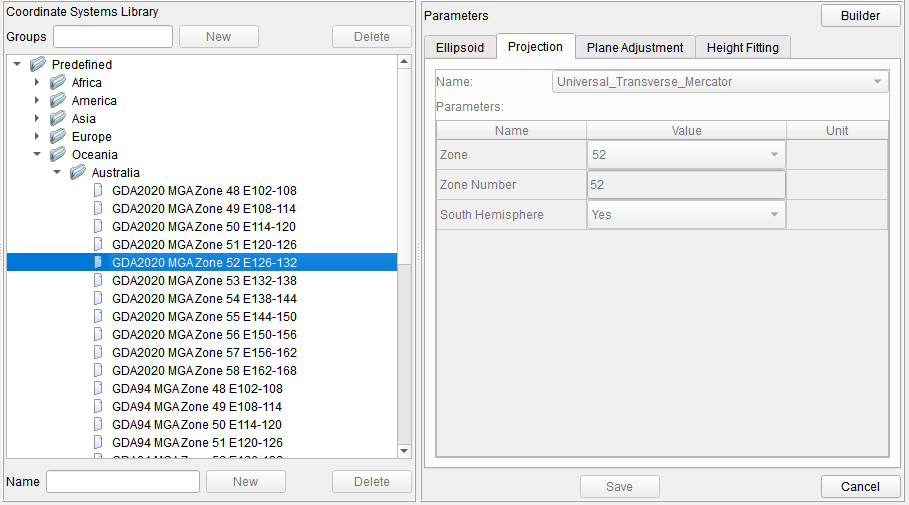
Figure 10.3 Predefined Coordinate Systems
Select a predefined coordinate system, right click on it and click [Sent to Customized] to copy it from predefined group to customized group. Click on customized coordinate systems, the parameters will be displayed on the right side and can be edited. It is also possible to create groups and create coordinate systems in customized group, then configure and edit coordinate system parameters.
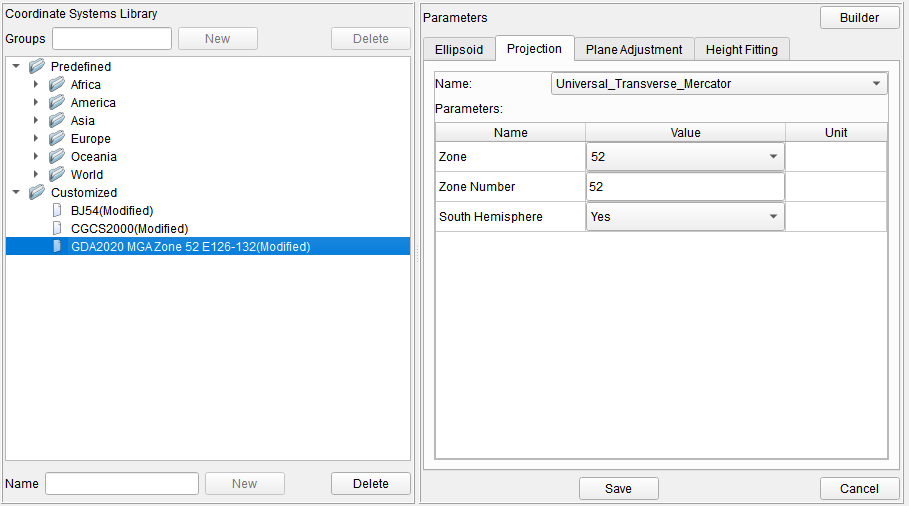
Figure 10.4 Customized Coordinate Systems
There are Ellipsoid, Projection, Plane Adjustment, Height Fitting and Geoid in Parameters part.
| Ellipsoid | The local ellipsoid of of the current project, including ellipsoid and datum transformation. When editing ellipsoid parameters, you can select it from the drop-down list, and the parameters such as a and 1/f will be changed accordingly. The datum trans includes None, Three Parameters and Seven Parameters. In the current project, the ellipsoid and datum trans are used to realize the conversion calculation of Lat/Lon/Hgt coordinates under WGS84 and local system. |
|---|---|
| Projection | The projection of the current project. Select projection type from the drop-down list, and enter parameters according to projection type, such as Origin Lat, Central Meridian, False North, False East, Scale and so on. In the current project, the projection is used to realize the conversion calculation of Lat/Lon coordinates and North/East coordinates under local system. |
| Plane Adjustment | The plane adjustment parameters of the current project. In the current project, the plane adjustment is used to realize the conversion calculation of projected North/East coordinates and known coordinates in site calibration. |
| Height Fitting | The height fitting parameters of the current project. In the current project, the height fitting is used to realize the conversion calculation of ellipsoidal height coordinates and known elevation coordinates in site calibration. |
| Geoid | The geoid model of the current project. In the current project, the geoid model file selected is used to calculate elevation above mean sea level from ellipsoidal height. |
10.2 Antennas
Click Tools menu, click [Antennas] button, to open Antennas tool.
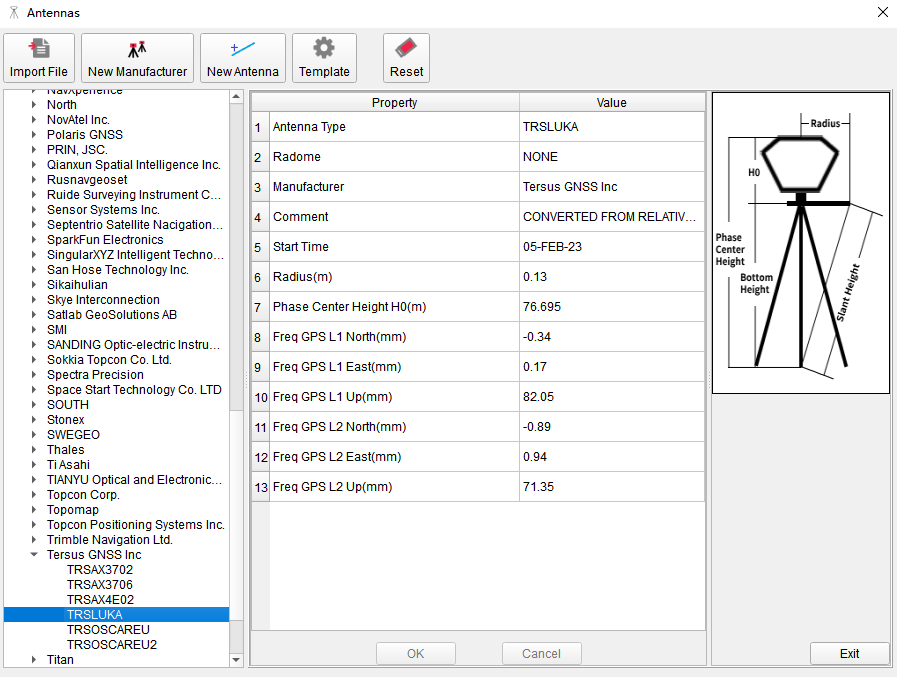
Figure 10.5 Antennas Tool
In the tool, antennas in the list are categorized according to manufacturers. Click on antenna item to display properties and values.
When importing GNSS files, software will automatically recognize antenna information recorded in observation files, match the antenna type and parameters in Antennas tool in calculations. If there is no matching antenna type in the tool, you can click [Import File] to import antenna file or click [New Manufacturer] and [New Antenna] and input antenna parameters manually.