Nuwa
-
Nuwa Data Import
-
Project Data Editing
-
Nuwa Data Export
7.1 Nuwa Data Import
Click Nuwa menu, click [Import] button, open Nuwa Project Import dialog.
Select the local path in computer and check the data from Tersus Nuwa field application containing Nuwa project, base map file, road file or code file to import.
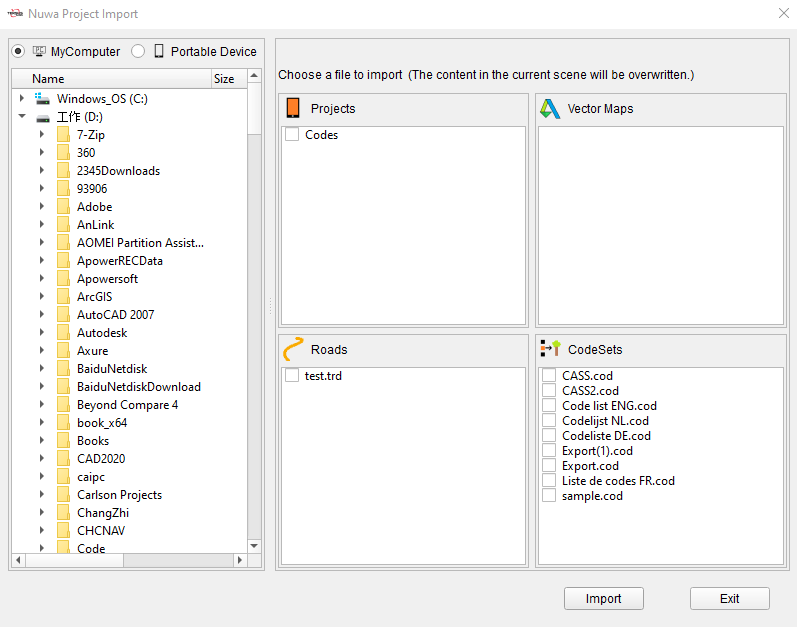
Figure 7.1 Nuwa Project Import
If there is a controller connected and the USB has been set as file transfer, switch to [Portable Device], the software will directly find the TersusSurvey folder and show the data from Tersus Nuwa field application containing Nuwa project, base map file, road file or code file to import.
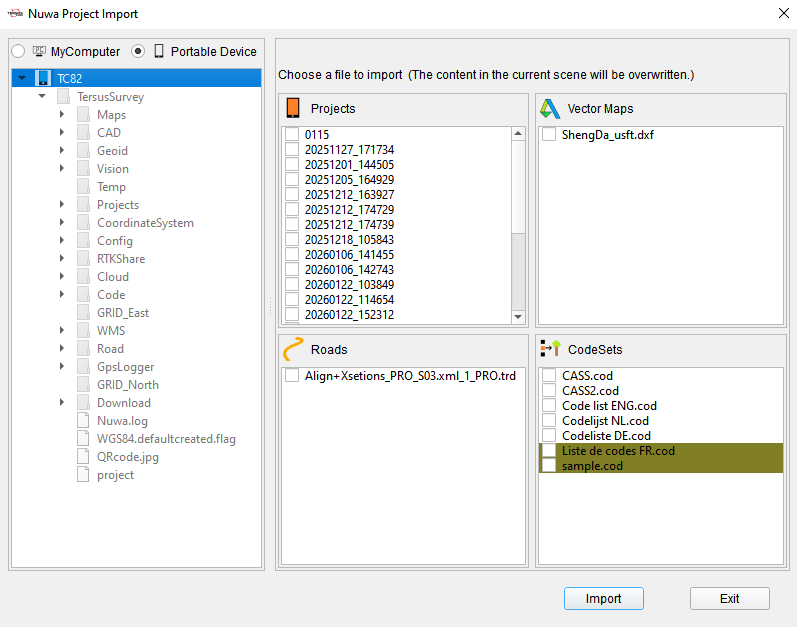
Figure 7.2 Nuwa Project Import from Controller
Select the data to be imported and click Import. The data will appear in the Work Space.
7.2 Project Data Editing
Click Nuwa menu, click [View Project] button, to display Survey Points, Staking Points, Control Points and Lines in Nuwa project in lists.
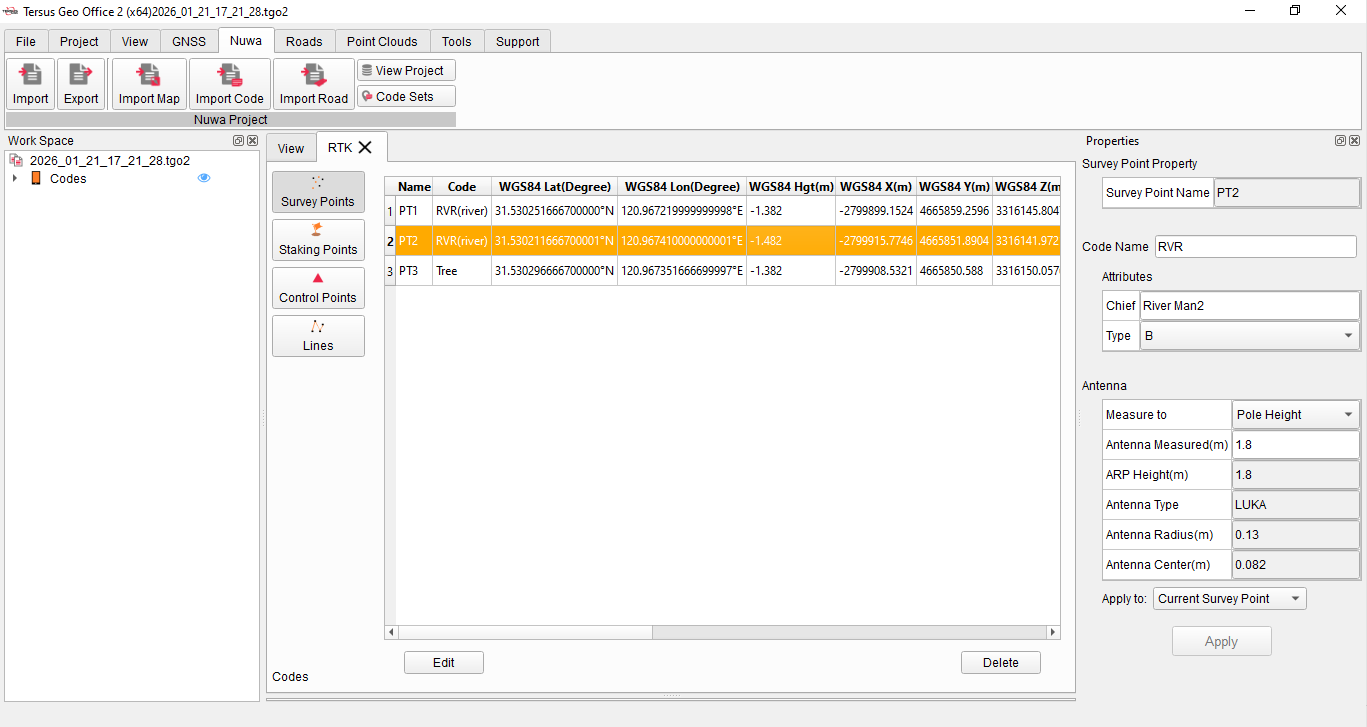
Figure 7.3 Project Data Editing
Select one of the survey points, the code, attributes and antenna information of the point will be displayed in the Properties window.
Click Edit button under the list to edit the code of the point or change the style shown in the view.

Figure 7.4 Change Code
If the Code is changed, the attributes in properties window will change accordingly.
If the antenna height and measurement method have been modified, the coordinates will be re-calculated based on the new antenna information, even if the point was measured under tilt compensation.
In the Lines list, it will show the line information and the points connected in the line. Click Edit to edit the code of and style of the line. Click Create to new a line and select points connected into the line.
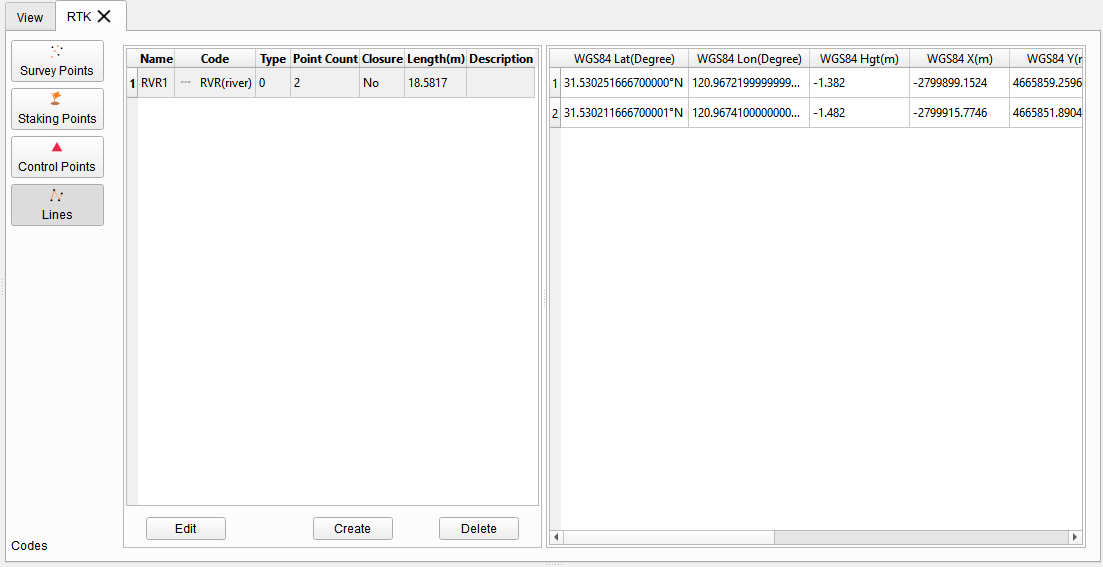
Figure 7.5 Lines List
Double-click [Project Codes] in the project tree in Work Space to view the point and line codes of the current project. Here, you can create or edit codes, modify their style and color displayed in the view, and update code attributes if needed.
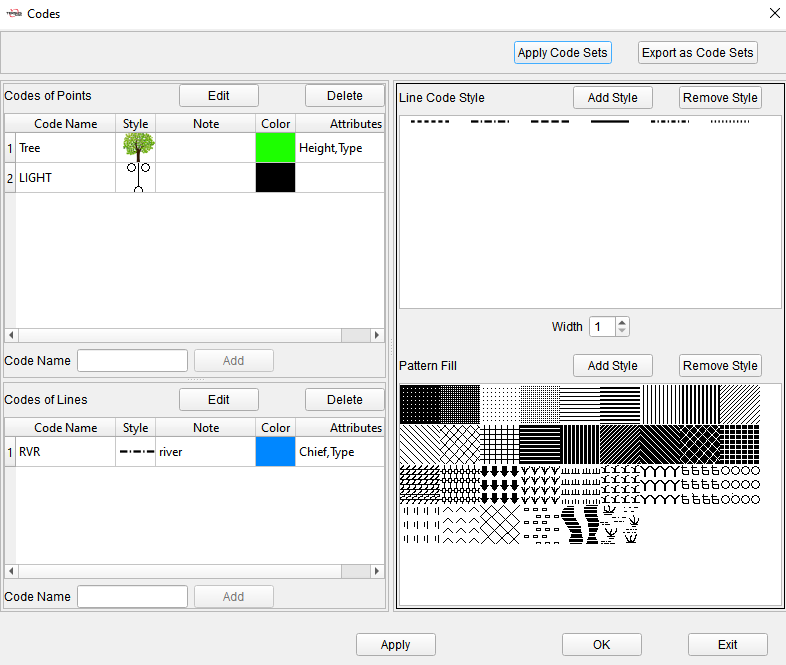
Figure 7.6 Codes in Current Project
7.3 Nuwa Project Export
Click Nuwa menu, click [Export] and select the local path in computer to export modified project. If there is a controller connected and the USB has been set as file transfer, switch to [Portable Device], the modified project will be automatically saved to the TersusSurvey folder in the controller and can be directly opened after restarting the Nuwa application on the controller.
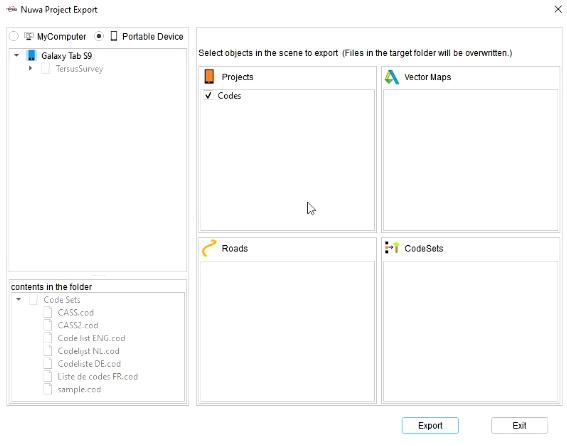
Figure 7.7 Nuwa Project Export to Controller