App Data Management
Tersus MVP S1 Capture provides comprehensive data management functions. Users can upload, download, rename, or delete files via the File Management page. If data is downloaded from the device to a mobile phone, it can be viewed directly on the phone for quick inspection.
Device Storage
Although users can view the scanning process on their phone in real time, all completed scan data is stored on the Tersus MVP S1's TF card after each scan. You can find your recently scanned data under Data Management → Device Storage. By default, files are named according to the recording start time, and the preview thumbnail is the first photo captured at the start of recording.
It is recommended to rename each file after scanning for easier identification later. The top-right buttons, from left to right, are Download, Delete, and More. The More menu allows you to select all files or sort them by name or size. Please note that deleted files cannot be recovered.
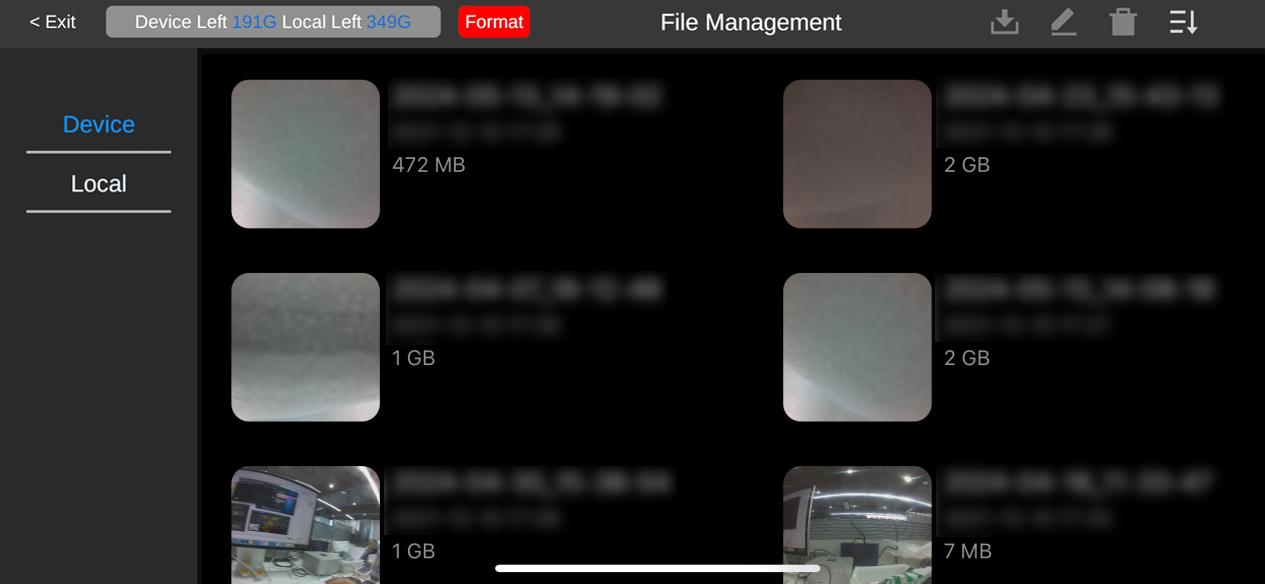
Figure: Viewing Device Storage Data
Local Storage
To download scanned data to your mobile device, select the desired file(s) on the Device Storage page and tap Download. After downloading, the file will appear under the Local page.
In the Local interface, you can navigate the virtual environment to inspect scanned areas. Due to the limited processing power of mobile devices, the point cloud displayed in review mode is a downsampled version, intended only to verify scanned areas. For full-quality viewing, post-processing on a computer is recommended.
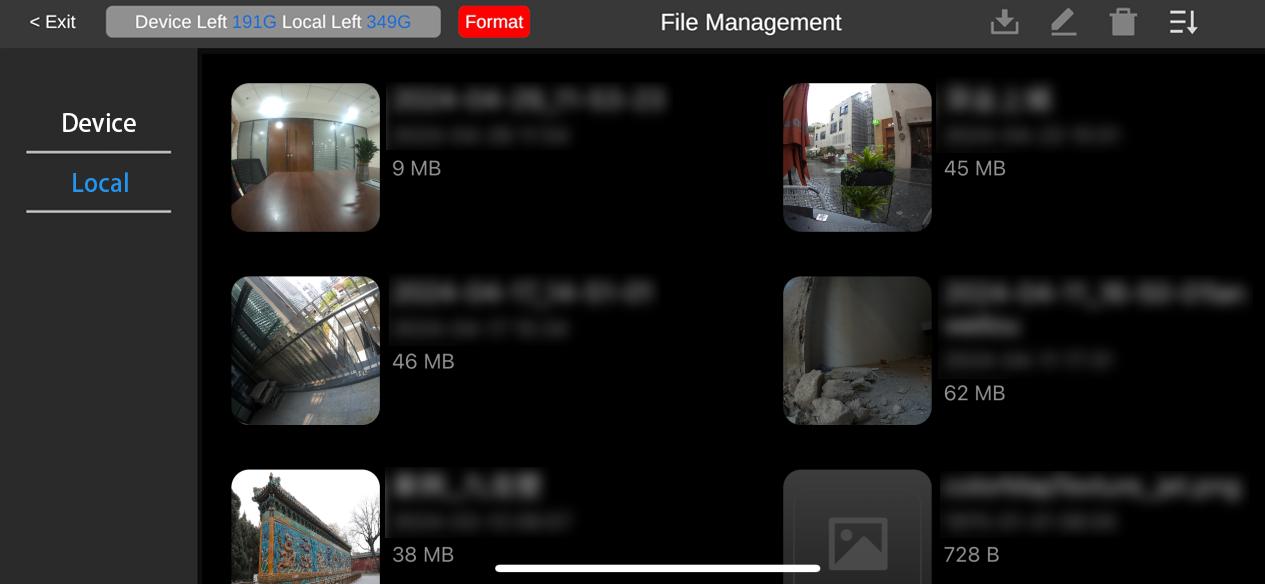
Figure: Viewing Local Storage Data on Mobile
\
Reviewing Data
Switch to local file management and select the corresponding project. In the Review interface, you can rotate, zoom, and pan the point cloud for detailed inspection.
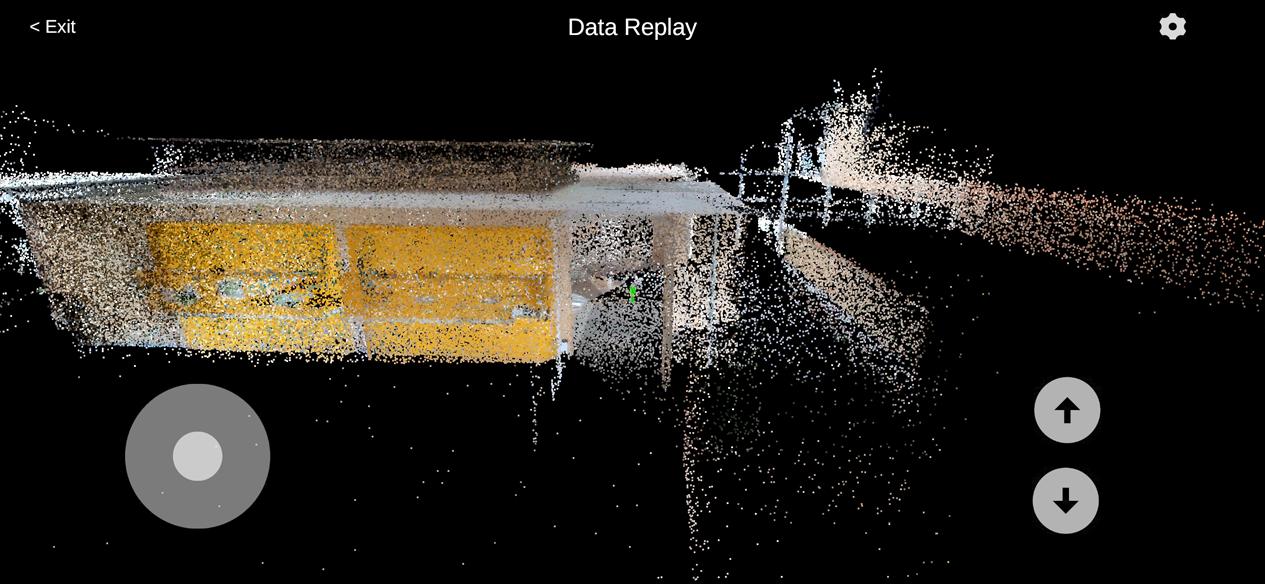
Figure: Data Review Interface
\