Web query and management
Base station data stream query
Type your IP and port separating with a colon in your web browser, input the account and password of the base station, then you can view whether the base station data is uploading to the server, and the online status of recent three days. If there is a client is connected to this base station, it can be viewed on this web page.
Group User Management
The Group User function is mainly used for regional agent to manage and configure Client end-users with different privileges after using GeoBee builds a certain number of base stations in a region.
Specifically, under previous versions of Caster software, after the regional agent sends data from the GeoBee base station (NtripServer) in the region to the Caster software (NtripCaster) using the username and password distributed by Tersus, the end-user (NtripClient) in the region can only get the differential correction data using corresponding user name and password with the GeoBee base station, and the regional agent can not realize the configuration of the end-user's duration, limit days, available base station and other permissions. The new version of Caster software's Group User management function will make up for this weakness. The operation is as follows.
- Log in to the specified web page and use the designated password to log in to the Group User management function.
 Figure 3.1[]{#_Toc28509 .anchor} Login interface for group user
- After logging into Group User, enter the Group User interface, Group means the area where the regional agent is located. The next step is to pull the GeoBee base stations in the area into Group, by entering the user name and password of the GeoBee base stations distributed by Tersus and clicking Add.
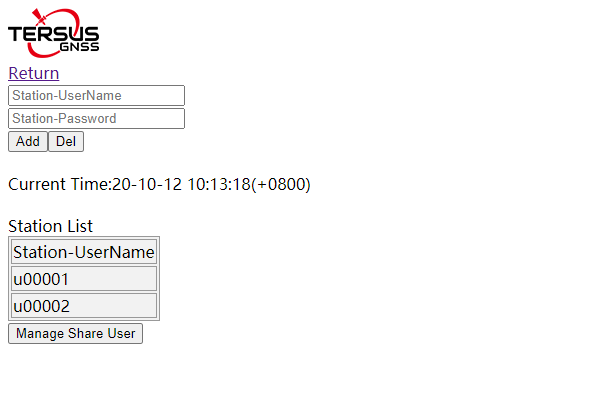 ② The GeoBee base stations added in the Group are listed here.
①Enter the user name and password of GeoBee base station, and click [Add].
Figure 3.2[]{#_Toc20988 .anchor} Base station list
If you want to remove a GeoBee base station that has been added to the Group, you need to enter the corresponding username and password and click the Del button. We need to make sure that the username and password are correct to prevent the base station from being accidentally removed.
- Start to configure the client end-users in the regional group. Click the Manage Share User button, and enter the ShareUser configuration interface.
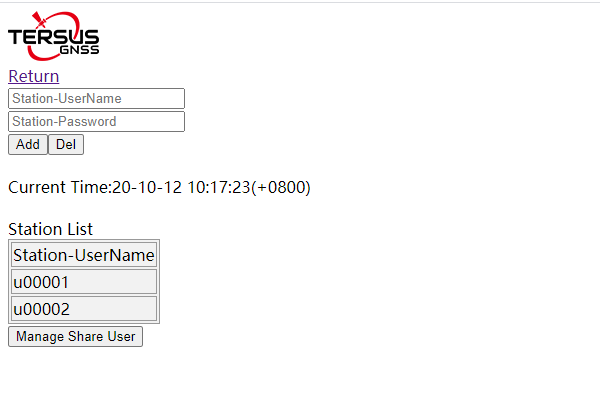 Figure 3.3[]{#_Toc2565 .anchor} Manage share user
- The regional agent inputs the username, password, expired date, limit days and limit numbers of the Client end-user to be configured. Please try to set a complex username and password according to the recommended rules to avoid the cases that different regional agents set the same username and password to cause end-users to connect to different regional base stations. The password is recommended to set a string consisting of letters or numbers.
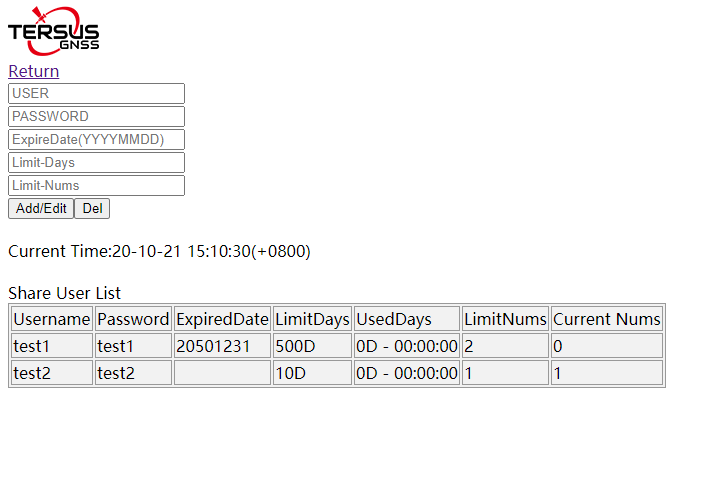 Figure 3.4[]{#_Toc10456 .anchor} Share user list
After setting the expired date of an end-user, once the end-user expires, the end-user will not be able to connect to Caster software to get the differential correction data. If not setting expired date, the Caster system will have no limit for the user's expired date.
After setting the limit days of end-user, the used days of end-user will be refreshed every time the end-user disconnects. When the used days reaches the limit days, the end-user will not be able to connect to Caster software to get the differential correction data. If more than one NtripClient uses the same user name and password to get the differential correction data at the same time, the used days of this user will be accumulated. If the limit days is not set, the Caster system will have no limit for the user's limit days.
After setting the limit number of concurrent online users, when every end-user connects to the Caster system with this username and password, the current connection number will increase by 1. When the current number of connection reaches the limit number of concurrent online users allowed, the system will not be able to connect using this username and password. If the limit number of concurrent online users is not set, the Caster system will have no limit for the concurrent online user using this username and password.
It should be noted that after this update of Caster software, Client end-users are still allowed to use the username and password of GeoBee base station to connect and get differential correction data, and the username and password has no limitation of expiration date, allowable days or concurrently online users. In other words, if the regional agent does not use the new Group User management function, the end-users in the region can keep the previous login method unchanged.
After the Client end-users have logged in, more information will be displayed.
 Figure 3.5[]{#_Toc3892 .anchor} Share user information
If the value of LimitNums of the user account is 1, and when Current Nums is 1, it means that the end-user is currently online. Used Days shows the cumulative usage time. Recent Mount shows the base station(mount point) that the user currently connects to. Recent Login shows the logging in time.
If the value of LimitNums of the user account is 1, and when Current Nums is 0, it means that the end-user is currently offline. Recent Mount shows the base station that the user connected to last time. Recent Logout shows the logging out time last time.
If the value of LimitNums of the user account is 2 or more, the value of Recent Mount, Recent Login, Recent Logout will show the last base station, the last logging in time and the last logging out time of one of the users.
Nearest Base Station
This version of Caster software adds the Nearest Base Station function which will automatically select the nearest base station among all the base stations that is allowed to connect to according to the GGA uploaded by the NtripClient end-user and establish the connection.
The Nearest Base Station operation is very simple, NtripClient end-user can select NearBy mount point when obtaining the Mountpoint. The distance calculation and selection of Nearest Base Station will be done inside Caster software.
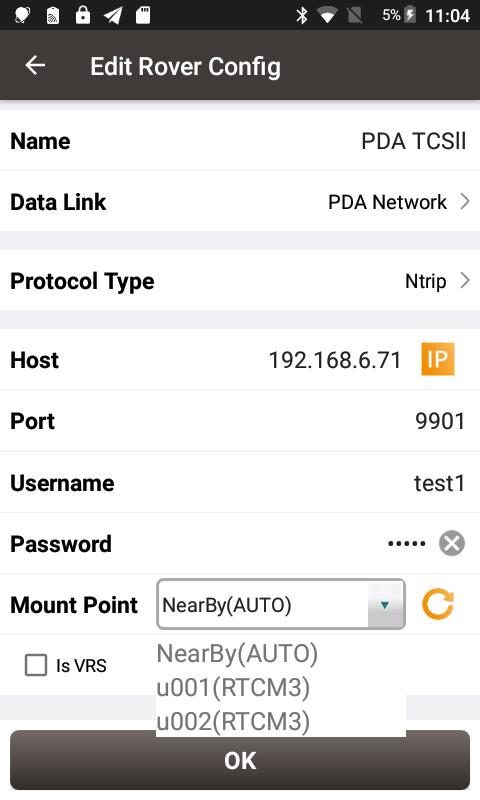 Figure 3.6[]{#_Toc11084 .anchor} Select nearby mount point